Usage
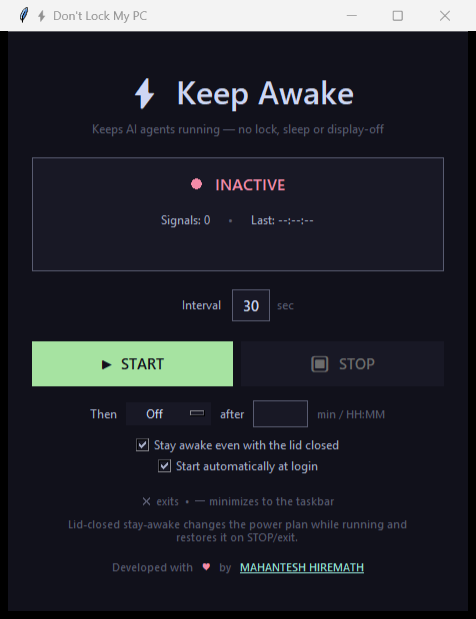
The whole app is one window. Set your options, press START, and walk away.
Controls
| Control | What it does |
|---|---|
| ▶ START | Begins sending keep-alive signals at the configured interval |
| ⏹ STOP | Halts signals and restores default power/idle behavior |
| Interval | Signal frequency in seconds (default 30, editable when stopped) |
| Then … after … | Schedules Sleep / Hibernate / Shutdown once the time elapses |
| Stay awake even with the lid closed | Windows: keeps the system awake when the lid is shut |
| Start automatically at login | Toggles autostart (Windows Run key / macOS LaunchAgent) |
| Close (✕) | Exits the app |
| Minimize (—) | Windows: hides to the system tray · macOS: minimizes to the Dock |
The status card shows a live pulse, a signal counter, and the timestamp of the last keep-alive signal so you can confirm it's working.
Basic keep-awake
- Launch the app.
- (Optional) Change Interval — 30 seconds suits almost every setup.
- Press START. The status turns green and reads ACTIVE.
- Run your agent / build / job and walk away.
- Press STOP when you're done to restore normal power behaviour.
Pick an interval below your lock timeout
The interval must be shorter than your screen-lock timeout, otherwise
the machine can lock between signals. If your policy locks after 1 minute,
use 30 or less.
Keeping the lid closed (Windows)
Tick “Stay awake even with the lid closed” before pressing START.
While running, the app temporarily sets the active power plan's lid close action to Do nothing, then restores your original setting on STOP or exit.
macOS clamshell sleep
On macOS, closing the lid triggers firmware-level sleep that an app cannot
override. It can only be disabled system-wide with
sudo pmset -a disablesleep 1 (and re-enabled with 0) — so the app
deliberately does not change it for you. The checkbox is hidden on
macOS.
Scheduled power action
Perfect for “keep my PC awake for the agent, then shut it down when it's finished.”
- Set Then to
Sleep,Hibernate(Windows only), orShutdown. - Set after to either:
- a number of minutes — e.g.
90 - a 24-hour clock time — e.g.
23:30(the next occurrence)
- a number of minutes — e.g.
- Press START.
When the deadline is reached, a 30-second cancelable warning appears. If you don't cancel it, keep-awake is released first (so the OS can actually power down) and the action runs.
flowchart LR
    A(["▶ START<br/>action armed"]) --> B["Countdown<br/>N min or HH:MM"]
    B --> C{"Deadline<br/>reached?"}
    C -- "No" --> B
    C -- "Yes" --> D["⚠️ 30s warning"]
    D -- "Cancel / STOP" --> E(["Aborted<br/>keep-awake continues"])
    D -- "Timer ends" --> F["Release keep-awake"]
    F --> G(["💤 Sleep · Hibernate · Shutdown"])

    style A fill:#a6e3a1,color:#11111b
    style E fill:#a6e3a1,color:#11111b
    style G fill:#f38ba8,color:#11111b
    style F fill:#89b4fa,color:#11111b
Supported actions by platform
| Action | Windows | macOS |
|---|---|---|
| Sleep | ✅ | ✅ |
| Hibernate | ✅ | ➖ (not a macOS feature) |
| Shutdown | ✅ | ✅ |
Cancelling is easy: click Cancel in the warning dialog, or press STOP at any point before it fires to disarm the timer entirely.
Invalid or blank timer
A blank or unparseable value simply disarms the timer — keep-awake runs normally and nothing is powered off.
Start at login
Tick “Start automatically at login” and the app registers itself with your OS:
- Windows — a value under
HKCU\...\CurrentVersion\Run - macOS — a LaunchAgent
.plistin~/Library/LaunchAgents/
Unticking removes it. If the OS rejects the change, the checkbox reverts so it always reflects reality.
Autostart launches the app, not keep-awake
The window opens at login but does not press START for you — you stay in control of when your machine is held awake.
System tray (Windows)
Minimizing sends the app to the tray. Right-click the tray icon for Show, Start, Stop, and Exit.
On macOS, pystray's backend must own the main thread, which conflicts with
Tkinter — so the app minimizes to the Dock instead of a menu-bar item.
Next: Features in depth